
How to Save
The Game Auto-Saves by Default
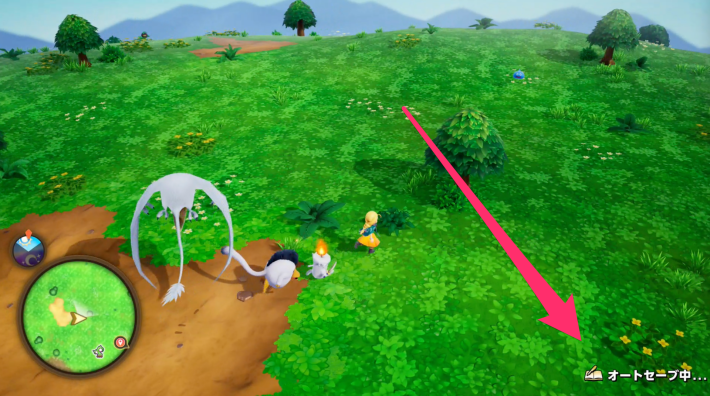
Dragon Quest Monsters: The Withered World (DQM4) mostly saves automatically. The game saves when “Auto-Saving” appears in the bottom-right corner of the screen. It auto-saves after battles with monsters and when moving between maps.
You Can Also Save Manually from the Menu
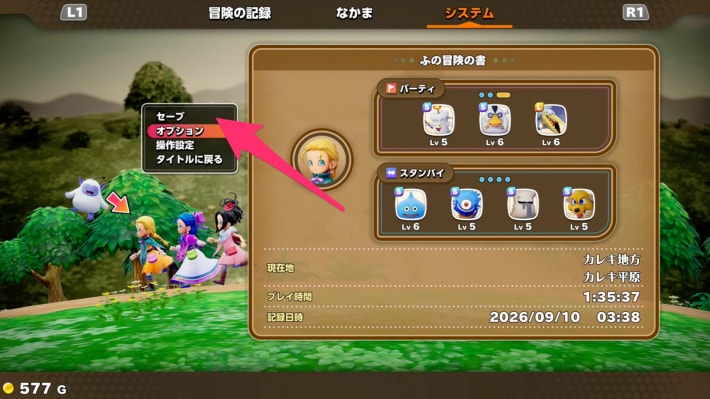
You can also save manually by opening the menu, selecting “System,” then choosing “Save.” Use this when quitting the game at a time when it won't auto-save.
How to Turn Off Auto-Save
Change the Setting in Options
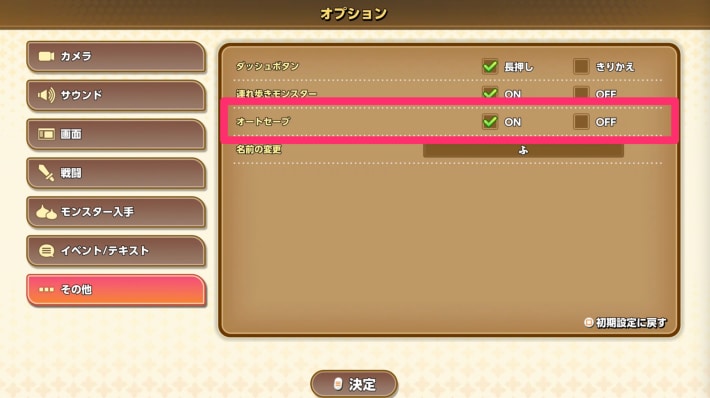
You can turn auto-save on or off in Options in DQM: The Withered World. If you save manually right before trying to Scout the monster you're after, you can keep reloading until you succeed.
Recommended Settings and How to Change Them
Can You Have Multiple Save Files?
You Can't Have Multiple Save Files
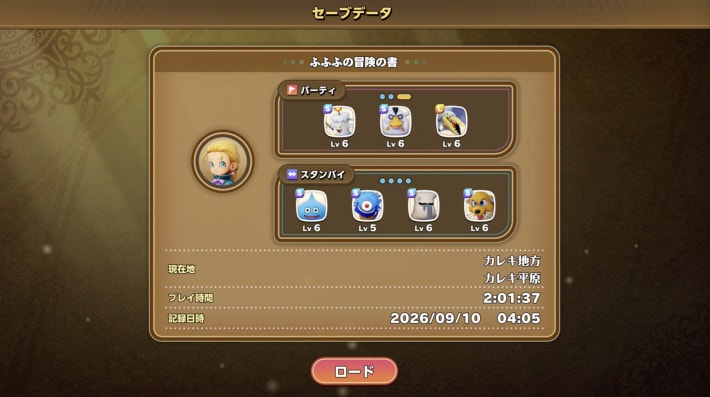
DQM: The Withered World does not let you have multiple save files. If you want to start a new game, delete your save data or start over with a different account.
How to Delete Save Data
Delete It from the Title Screen Options
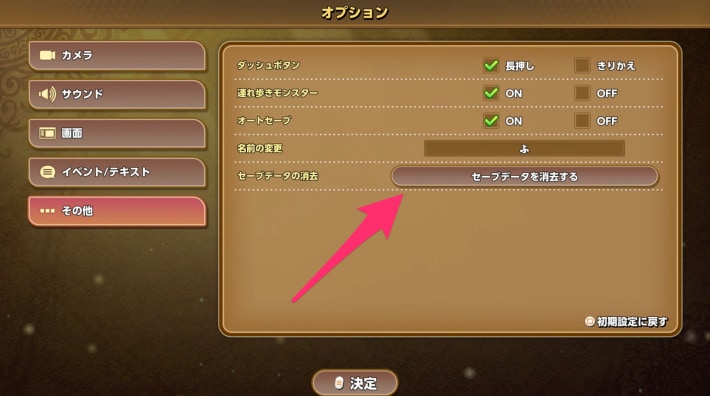
You can delete your DQM: The Withered World save data from the options on the title screen. Select “Delete Save Data” under “Other.”