
How to Prevent Motion Sickness and Change Settings
- Adjust Each Setting Under “Camera” in Options
- Set Camera Speed and Distance
- Camera Follow Is Best Left Off
- Sit Farther From the Screen
- Avoid Moving the Camera in Small Increments
To prevent motion sickness in Dragon Quest Monsters: The Withered World (DQM4), we recommend adjusting the camera settings in Options. You can also help prevent motion sickness by sitting farther from the screen and avoiding small camera movements.
Adjust Camera Settings in Options
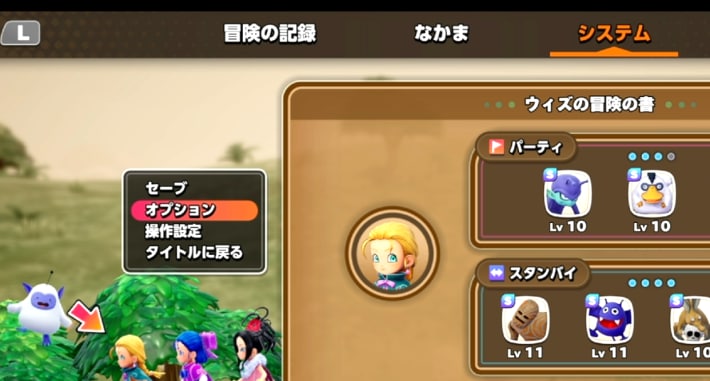
| How to Change Camera Settings | |
|---|---|
| 1 | Open the Menu Screen from “Menu” |
| 2 | Open “Options” from the “System” tab |
| 3 | Adjust Each Setting Under “Camera” |
| 4 | After making your adjustments, press the “Confirm” button at the bottom of the screen |
Open the menu screen from “Menu” in the bottom-right corner. Select “Options” from the “System” tab and adjust the camera settings. You can also adjust settings for sound and battles in Options.
Recommended Settings and How to Change Them
Choose the Motion Sickness Setting You Prefer
| Type A | Type B |
|---|---|
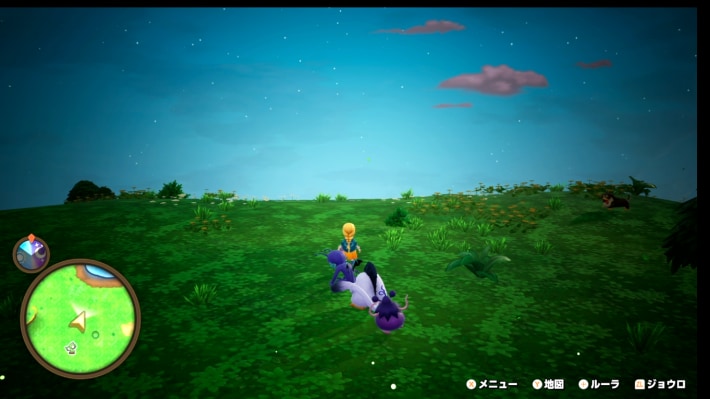 | 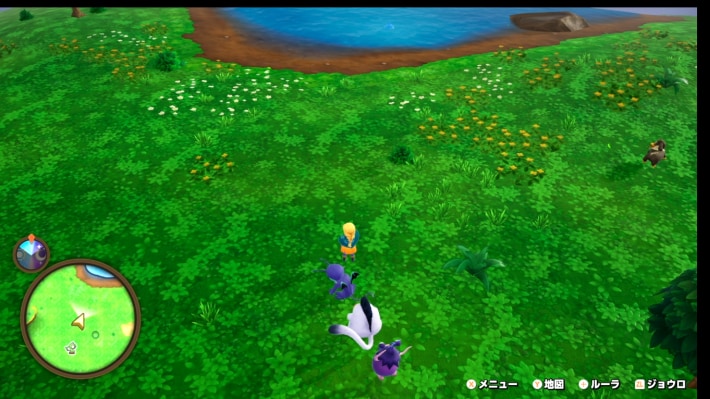 |
There are 2 types of settings to help prevent motion sickness: Type A darkens the edges of the screen, while Type B fixes the camera to an overhead view. They’re OFF by default, but try changing them if you feel nauseous.
Set Camera Speed and Distance
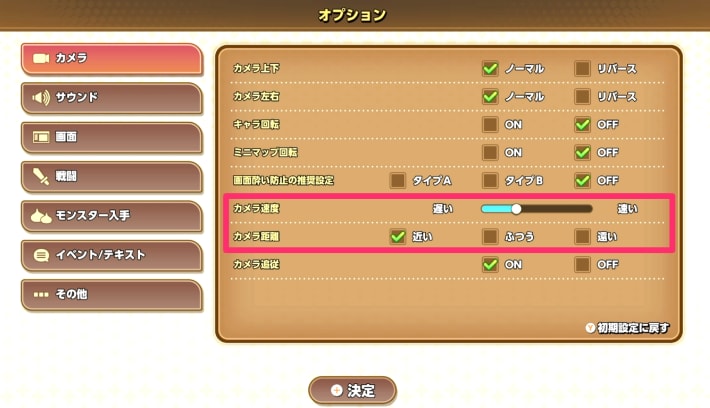
Adjusting the camera speed and distance can reduce eye strain. In particular, setting the camera speed to what feels right for you is recommended, as it can help prevent motion sickness.
Press the Right Stick to Adjust the Camera Distance
| Close | Normal | Far |
|---|---|---|
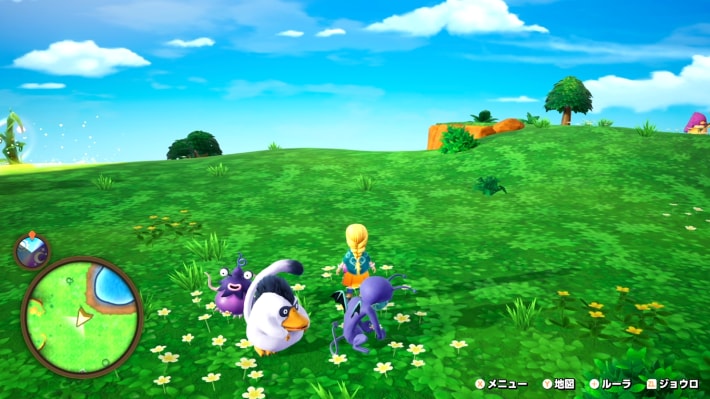 | 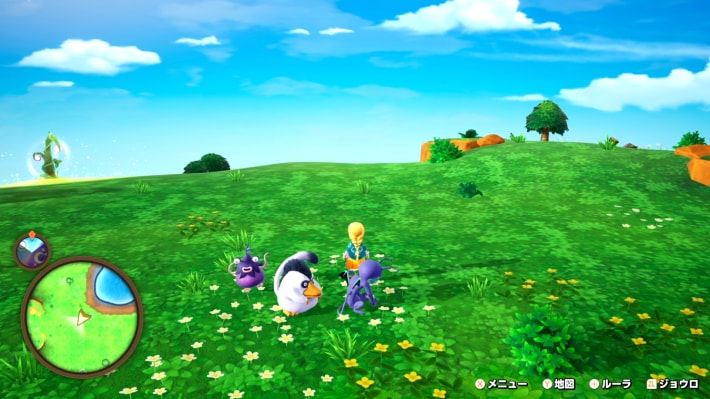 | 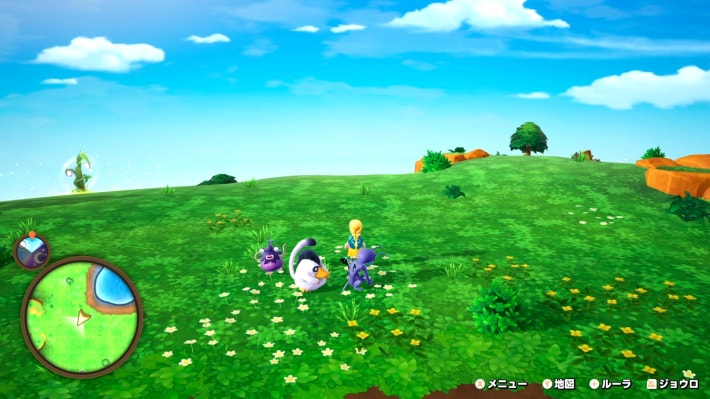 |
If you're using a controller, you can adjust the camera distance by pressing the Right Stick. This is recommended if the camera distance bothers you, such as when exploring the map.
We Recommend Keeping Camera Follow Off
Turning Camera Follow on makes the camera move along with the protagonist. Since this may make you more prone to motion sickness, we recommend leaving it off.
Move Farther Away from the Screen
If you experience motion sickness, try playing from a little farther away from the screen. The closer you are to the screen, the more your entire field of view moves, increasing the visual information and making you more prone to motion sickness. Moving farther away makes changes in your field of view less intense and can help reduce motion sickness.
Avoid Making Small Camera Movements
Making small camera movements causes your viewpoint to shift rapidly, which can lead to motion sickness. When moving your viewpoint, we recommend moving the camera slowly and over a wider range.
Best Camera Settings
We Recommend Settings That Stabilise the Camera
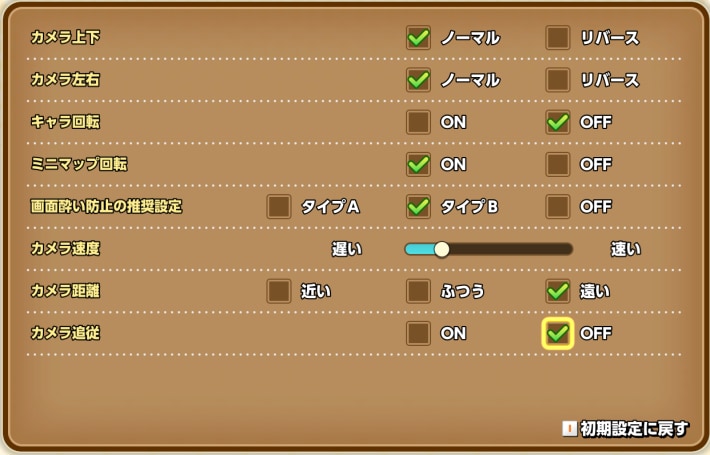
| Option | Setting |
|---|---|
| Motion Sickness Prevention Settings | Your preference |
| Camera Speed | Your preference |
| Camera Distance | Far |
| Camera Follow | OFF |
To prevent motion sickness in DQM: The Withered World, we recommend stabilising the camera movement. Adjust the camera speed to your liking and set the camera distance to Far to reduce strain.
If You Still Experience Motion Sickness, Adjust Your Play Environment
If you still experience motion sickness after changing the camera settings, try adjusting your play environment. We recommend sitting farther from the screen, breaking up your playtime into shorter sessions, and taking other steps to avoid straining your eyes.