
Marks are short messages you leave on the ground for other players to find. This guide covers how to create one from Camera Mode, where you can't place them, how to delete your own, and how to hide Marks left by others.
How to Leave a Mark with a Message
- Open Camera Mode and take a photo
Press F7 to enter Camera Mode, then take a photo at the spot where you want to leave your Mark.
- Click the Mark button
After taking the photo, click the Mark button. This opens the Save Snap template window, where you write your message.
- Build your message from Phrases and Conjunctions
Use the Phrase and Conjunctions buttons to put your message together. You can choose up to 3 Phrases or Conjunctions in total. A Written down counter appears below the buttons.
- Confirm and send
Select Confirm, then select Send. Your Mark is left on the ground at your current spot.
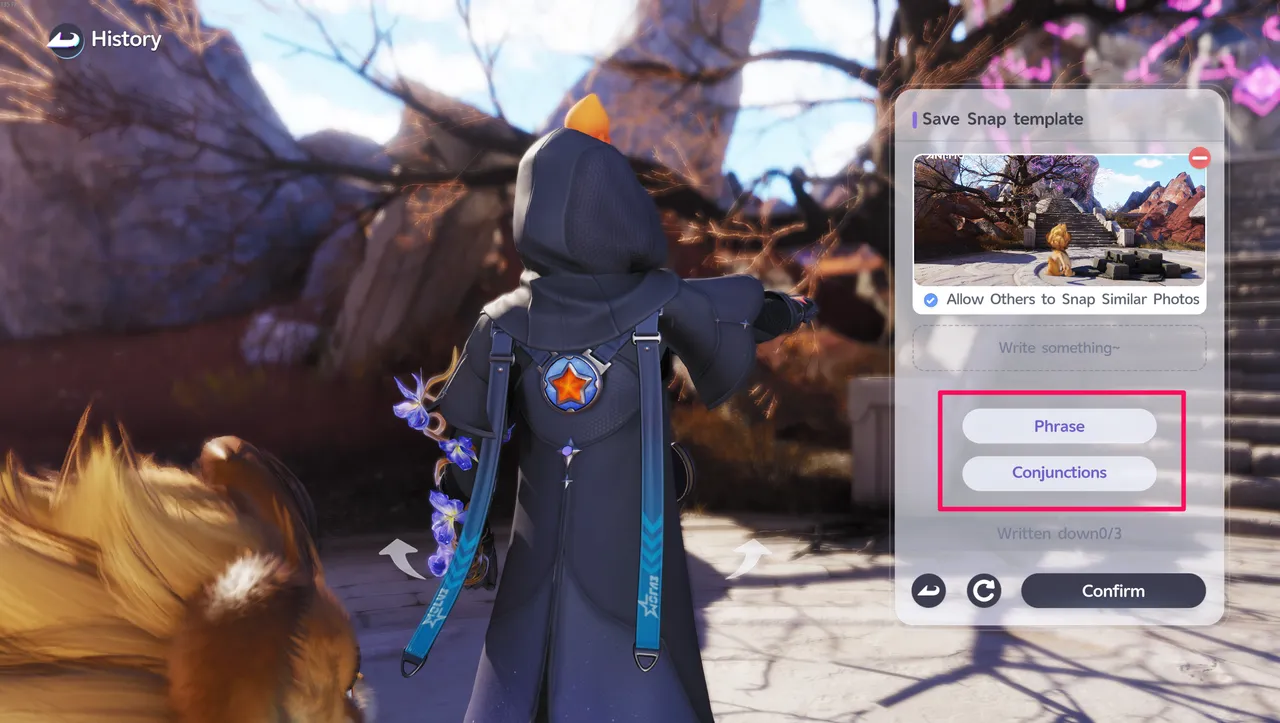
The same window also has an Allow Others to Snap Similar Photos checkbox under the photo preview.
Where You Can't Place Marks
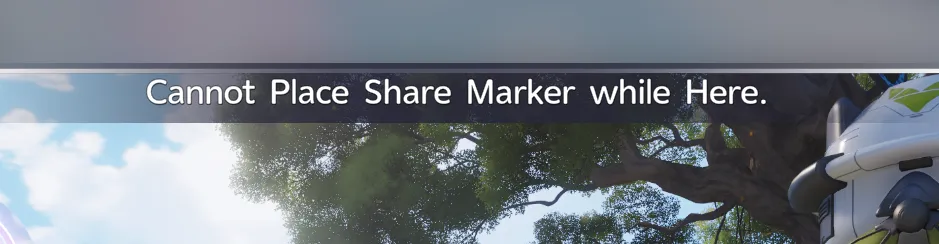
Marks can't be placed in certain areas, such as Outposts and exclusive event areas. If you try, the game shows the message "Cannot Place Share Marker while Here."
How to Delete Your Own Marks
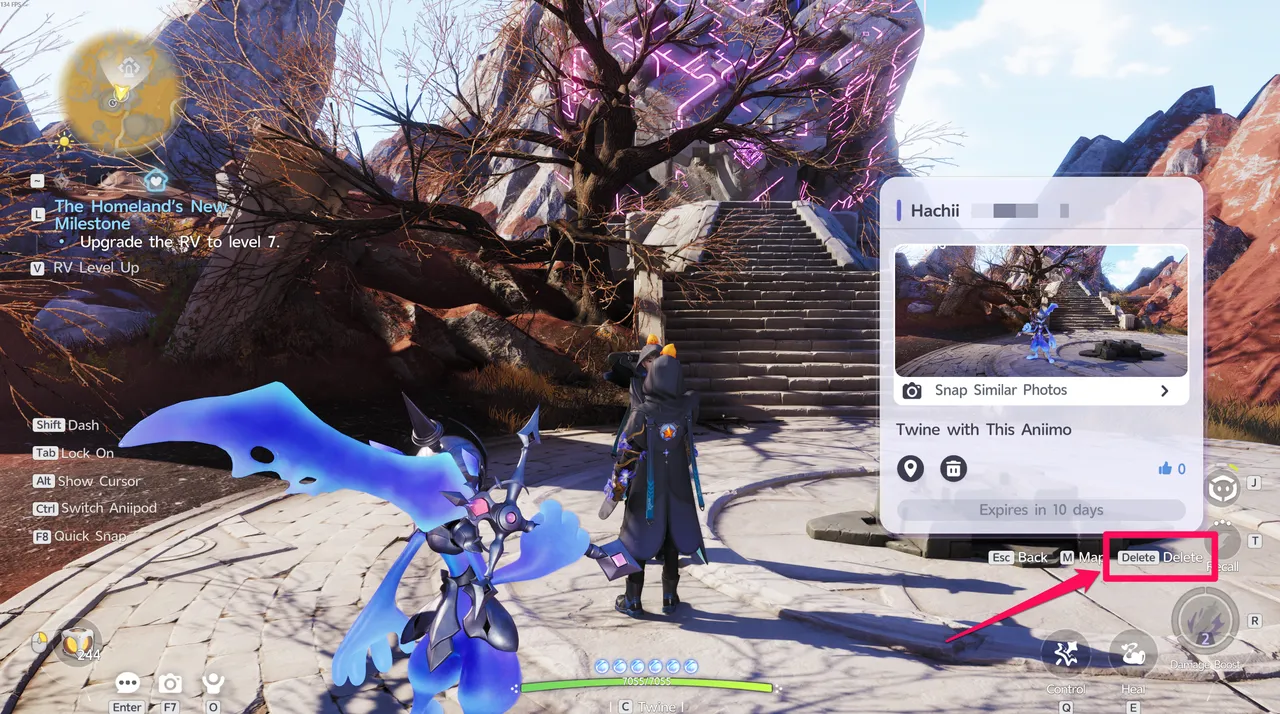
To delete a Mark you left, walk up to it and interact with it to open its panel, then select Delete. You can also press the Delete key shown in the bottom-right corner of the screen.
The panel also shows how long the Mark has left before it expires. The Mark in the screenshot below showed "Expires in 10 days."
How to Hide Marks from Other Players
You can't delete Marks left by other players, but you can hide them or control how many appear.
- Open Settings and select the Game tab
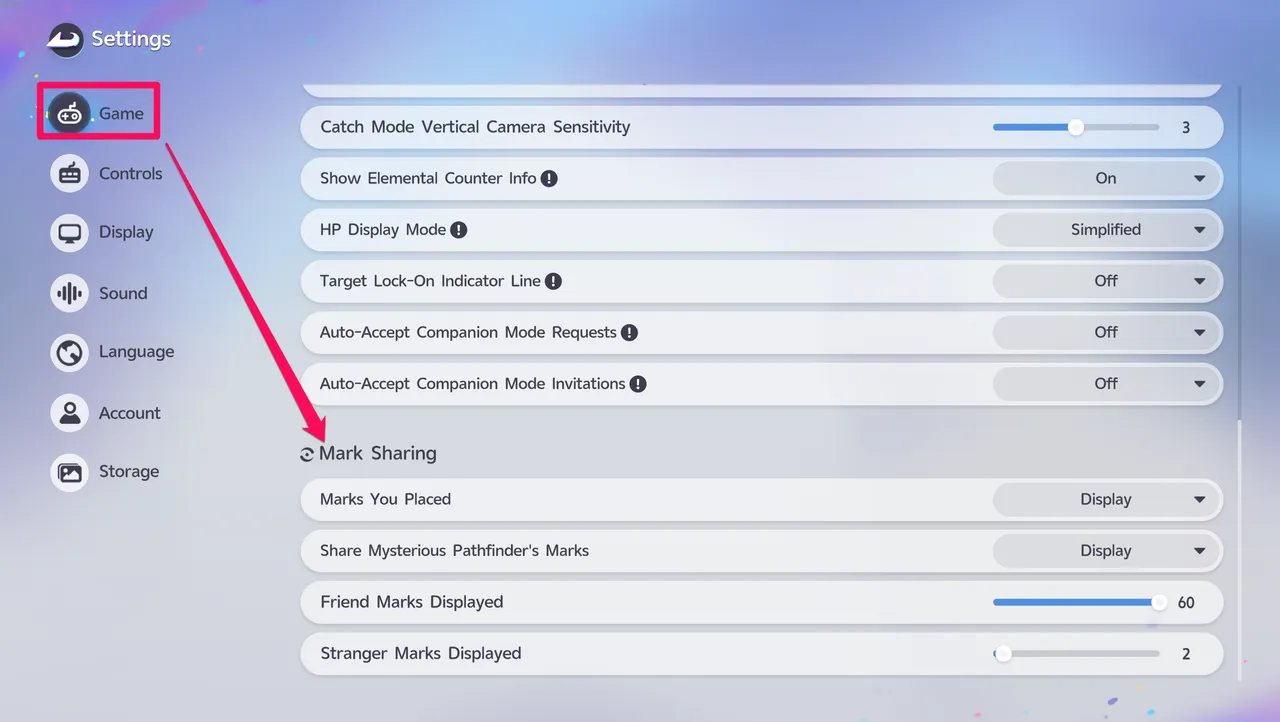
Open Settings and select the Game tab on the left.
- Scroll down to Mark Sharing
Scroll down to the Mark Sharing section.
- Set Share Mysterious Pathfinder's Marks to Hidden
Under Share Mysterious Pathfinder's Marks, select Hidden to hide Marks left by other players.
If you'd rather keep seeing Marks but fewer of them, use the Friend Marks Displayed and Stranger Marks Displayed sliders in the same section to adjust how many appear. In the screenshot below, they're set to 60 and 2.
How to Control Who Sees Your Marks
The Mark Sharing section also lets you choose who can see the Marks you leave. Open the Marks You Placed dropdown and pick Hide from Yourself, Hide from Others, or Hide from Strangers.