
Aniimo's Camera Mode lets you set up and save shots of your character, your Aniimo, and the world around you. Here's how to open it, what each control and function does, and how the F8 Quick Snap shortcut differs from a full shot.
How to Enter Camera Mode
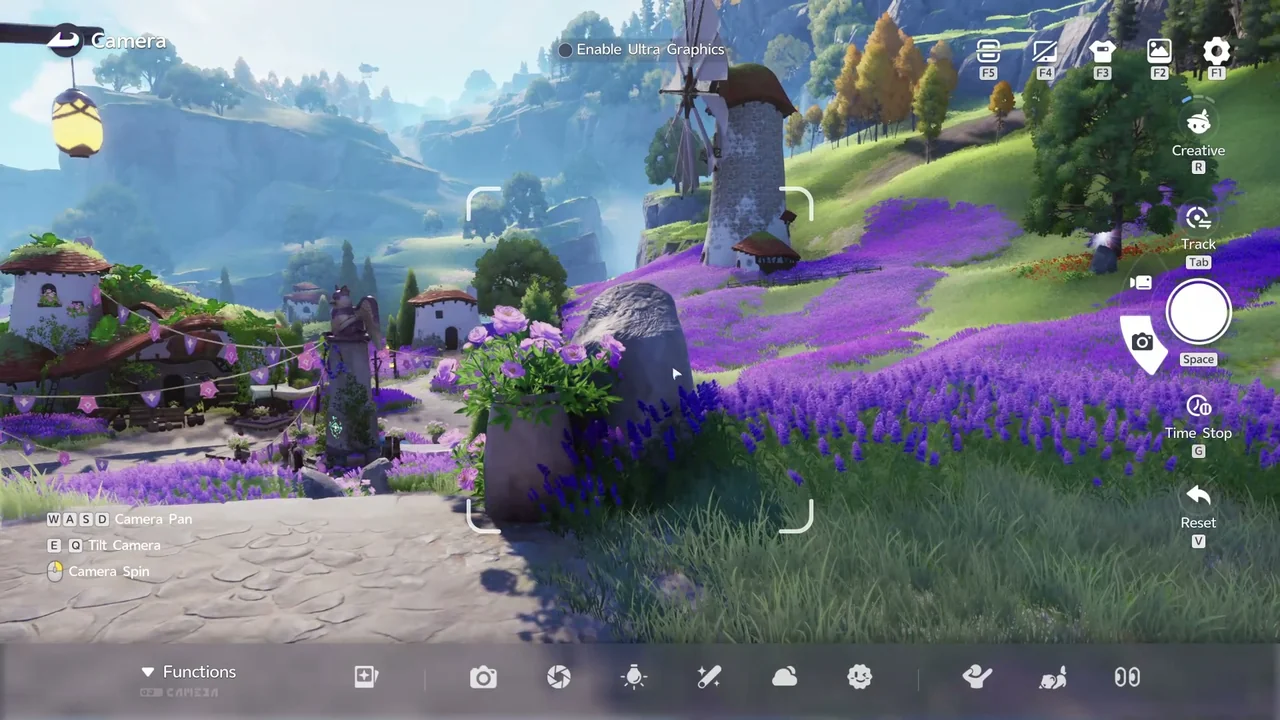
Press F7 to open Camera Mode, or press Alt to show your cursor and click the camera icon in the bottom-left corner of the screen. Once you're in, an Enable Ultra Graphics checkbox appears at the top middle of the screen.
Camera Controls
Camera Mode labels most of its controls directly on screen: WASD pans the camera, E and Q tilt it, and the mouse spins it. Tab tracks your subject, Space captures a shot (or starts a video), G freezes time, and V resets any changes you've made.
Five more icon-only shortcuts sit in the top-right corner: F5 imports snap data, F4 hides the UI, F3 customizes your appearance, F2 opens your Album, and F1 opens Settings. The R button switches between Camera Modes, and scrolling adjusts the focal length (zoom).
Camera Modes: Creative, Selfie, and Follow
Camera Mode has 3 modes, switched with the R button: Creative Mode, Selfie Mode, and Follow Mode.
Creative Mode is a free camera you can move and angle however you like. Selfie Mode automatically frames your character's face for close-ups. Follow Mode gives you a full 360-degree view around your subject.
Camera Functions
The Functions bar at the bottom of Camera Mode opens several panels for fine-tuning a shot:
| Panel | What It Offers |
|---|---|
| Camera | Choose a lens: Creative, Wide Angle, or Fisheye, plus a grid overlay toggle. |
| Templates | Ready-made poses sorted into Common, Popular, Favorite, and My tabs; star any template to favorite it. |
| Parameters | Sliders for Focal Length, Blur, Blur Range, Saturation, Brightness, Contrast, and Vignette. |
| Lighting | Toggle Character Fill Light or Custom Fill Light, adjust its strength, or pick a lighting preset. |
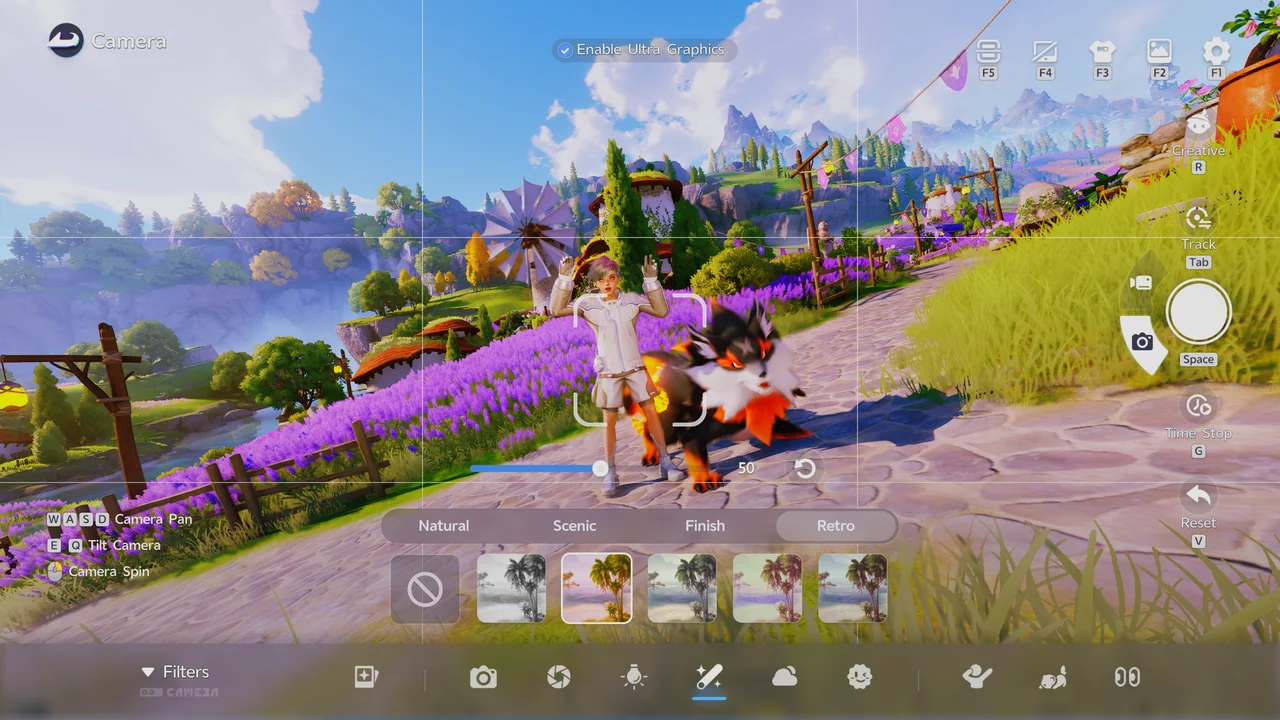
| Filters | Filters sorted into Natural, Scenic, Finish, and Retro tabs, plus a strength slider. |
| Time & Weather | 8 icon presets for time of day and weather, with no on-screen text label for each option. |
| Stickers | Icon Stickers, Emoji Stickers, and Text Stickers, up to 10 per shot. |
| Character Emote | Static or Dynamic poses for your character. |
| Aniimo Emotes | Expressions and gestures for your Aniimo companion. |
| Eye Direction | Set Character Gaze, Aniimo Gaze, or NPC Gaze, or apply the same direction to everyone at once. |
Video capture isn't available in Camera Mode yet, and there's been no announcement about when a video mode might arrive.
How to Do a Quick Snapshot
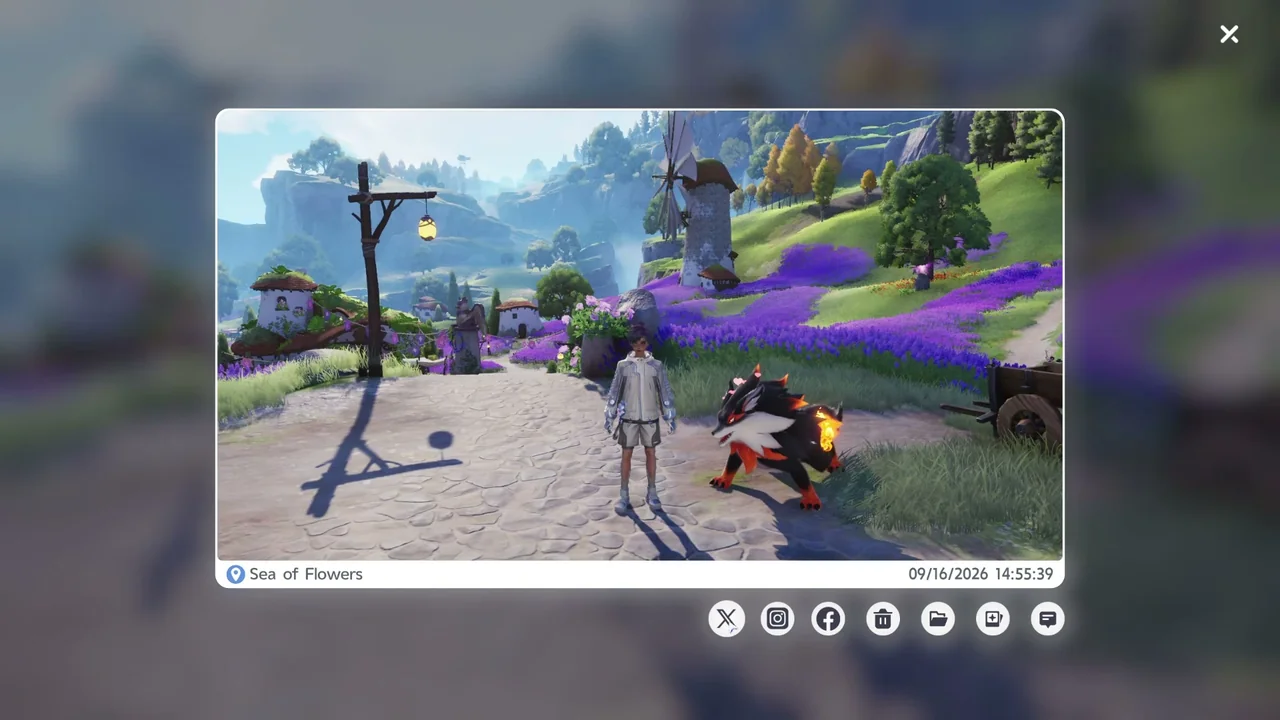
If you just want a fast capture without opening the full Camera Mode, press F8 for a Quick Snapshot. It captures your current view as-is using the default camera settings, then shows a preview tagged with your location and the date and time, which you can share or delete.
Full Aniimo index · Character Creation and Appearance Guide · How to Catch Aniimo: Controls and Catch Rate · All Guides