
If your character gets wedged in a crevice or against a wall and can't move, use the Unstuck feature in Settings. Here's where to find it, what it does, and when it won't help.
How to Use the Unstuck Feature
- Open the menu and select the gear icon
Open the menu and select the gear icon to open Settings.
- Go to the Game tab
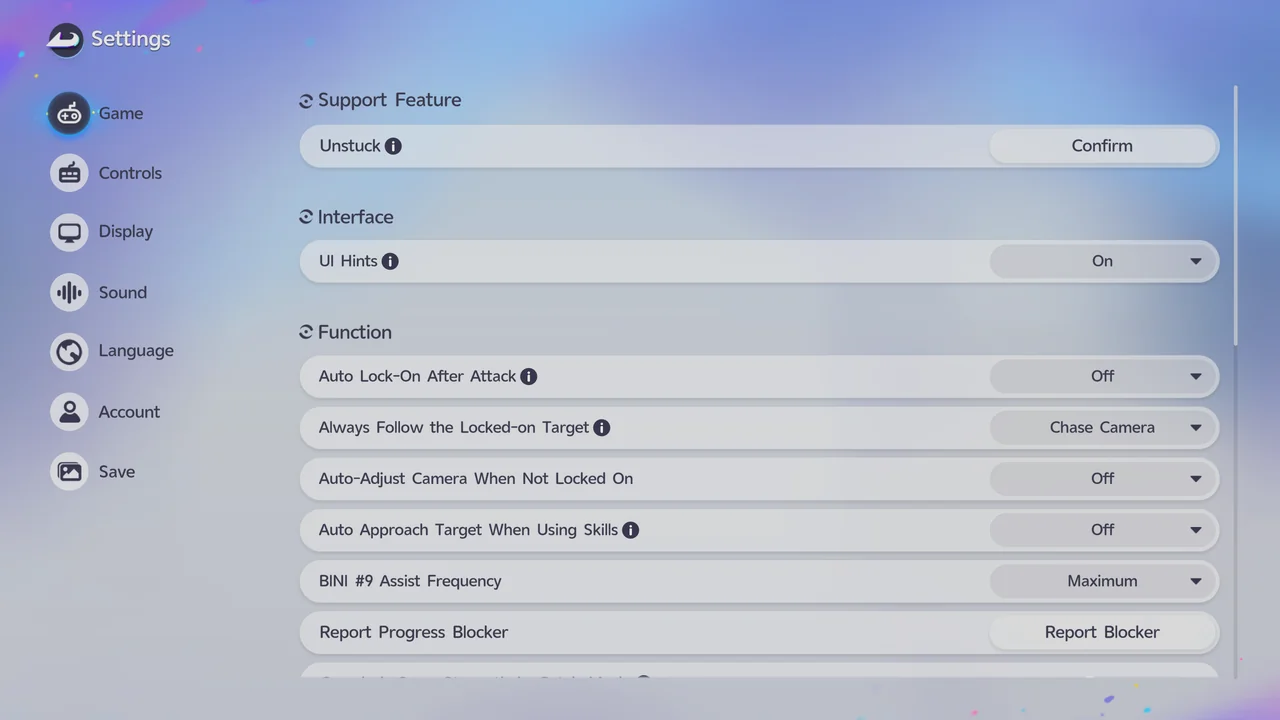
In Settings, select the Game tab. Unstuck is the first option at the top of this tab.
- Press Confirm next to Unstuck
Press Confirm on the Unstuck row to use it.
What the Unstuck Feature Does
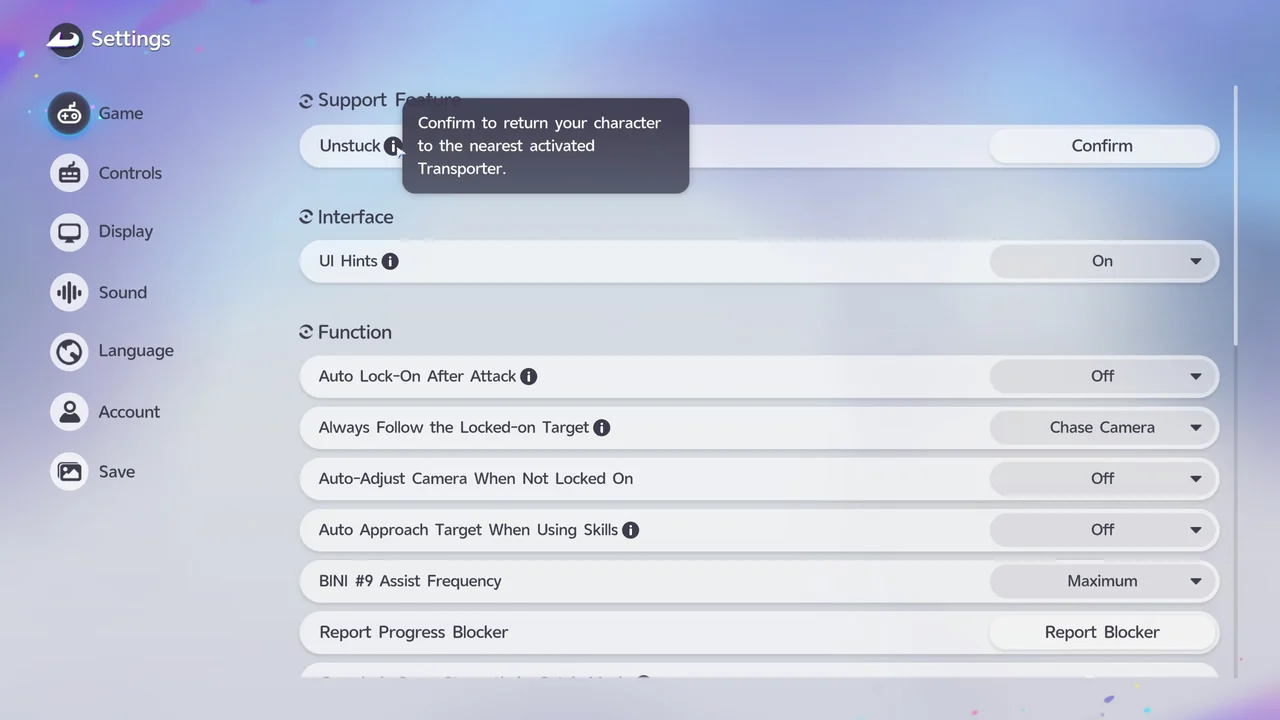
The in-game description of Unstuck reads "Confirm to return your character to the nearest activated Transporter." In other words, it moves you out of the spot you're stuck in and back to the closest Transporter you've already activated.
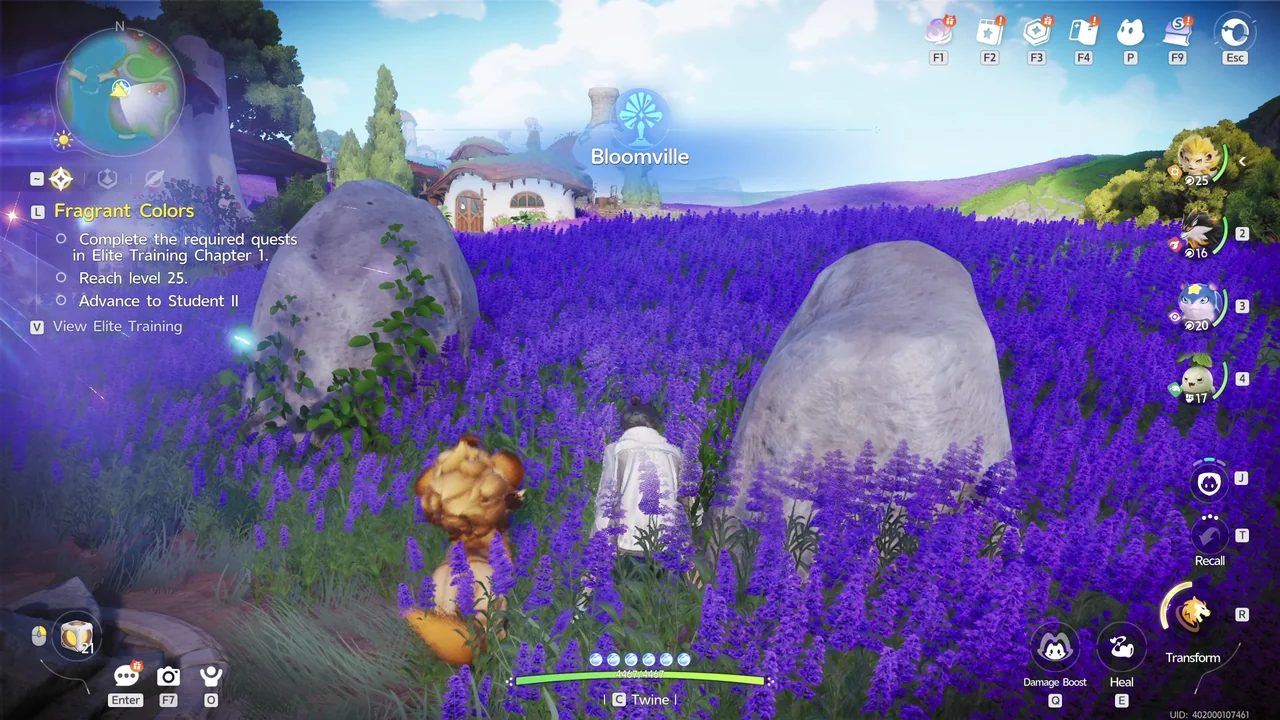
When we tried it on the waterwheel platform near the Sea of Flowers, Unstuck sent our character back to the Bloomville Transporter.
You Can Also Restart the Game
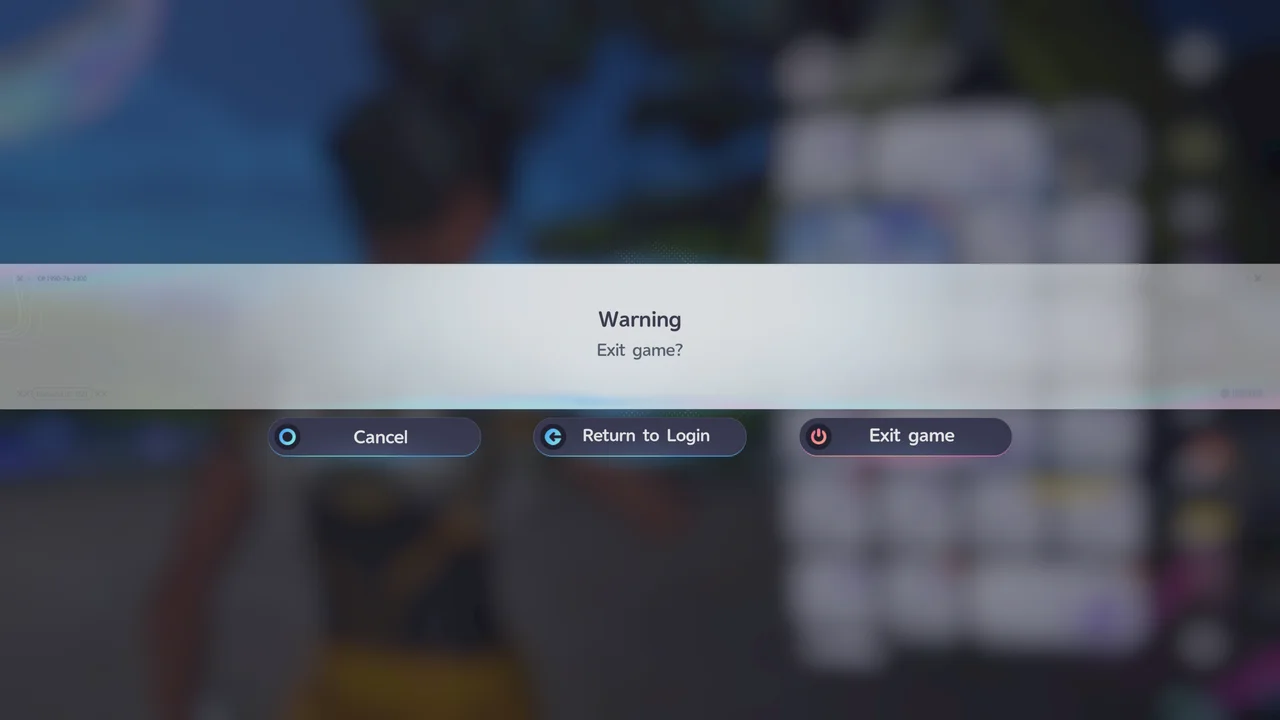
You can also free your character by restarting the game. Open the menu and choose Exit Game. When the "Exit game?" warning appears, select either Return to Login or Exit game, then launch Aniimo again.
After restarting, your character appears where you were when you left the game.
When Unstuck Won't Help
Unstuck did not fix a bug that can happen in Sanctum: Courageous Wit, where after matchmaking your own Aniimo stays inside the sanctum and you can't free the sealed Aniimo to clear it. See the Courageous Wit walkthrough for what did work.
Sanctum Challenge: Courageous Wit
Journey to Bloomville Walkthrough · Early Game Guide: How to Progress Efficiently · All Guides