Start with the settings below, then adjust them to your playstyle. Pick Adventure for Basic (Hunt) if you are a beginner and Classic once you are comfortable, set the frame rate as high as your device can handle, and keep Camera Terrain Adjustments on.
Best Control Settings
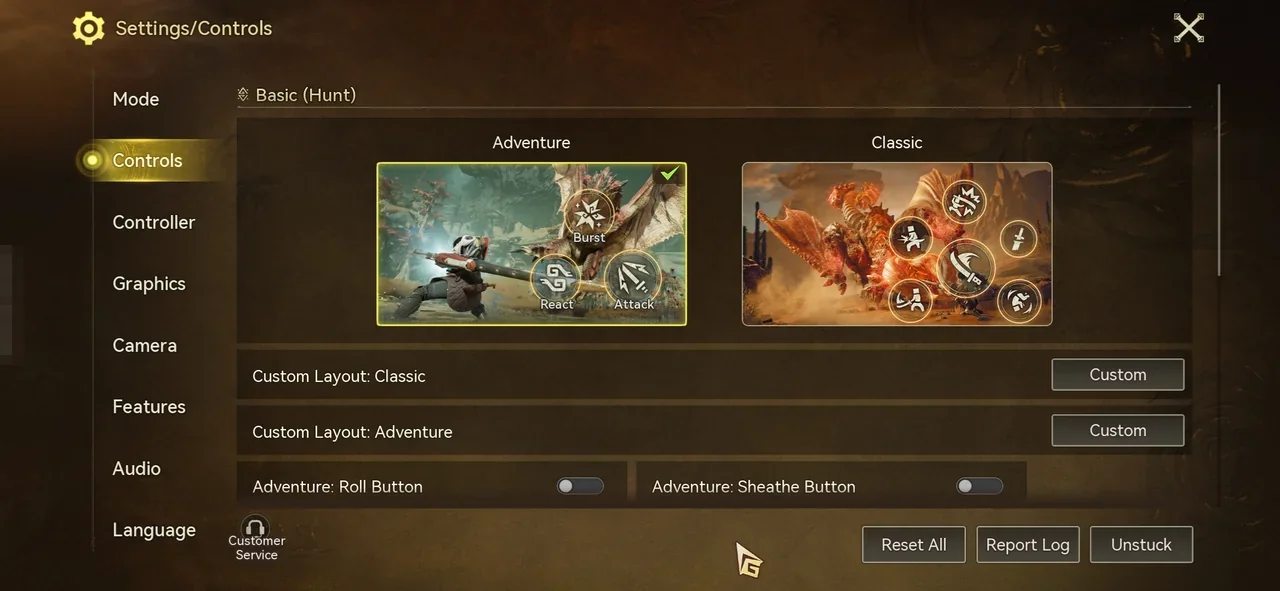
Some values in the screenshots differ from the recommendations. Follow the tables, not the screenshots.
Basic (Hunt) on the Controls tab switches between two control modes, Adventure and Classic.
| Setting | Recommended |
|---|---|
| Basic (Hunt) | Adventure for beginners, Classic for intermediate and advanced players |
| Adventure: Roll Button / Adventure: Sheathe Button | On |
| Auto-Sheath | On (Classic only) |
| Skill Wheel Controls | Swipe |
| Joystick Modes for Charging and Direction Change | Hybrid Mode |
| Aim Sensitivity | Your preference |
| Show Part Status | On |
| Radial Menu Sync | Off |
| Auto-Deploy Glider | On |
| Aim Assist | On |
| Invert Glider Dash Controls | Off |
| Auto-Use Facilities | Off |
| Auto-Use Items When Selected in Radial Menu | On |
| Enable Movement Joystick | On |
Check your control settings again whenever you switch between Adventure and Classic. Start from the values above, then adjust them to match how you play.
Customize Button Layout and Size
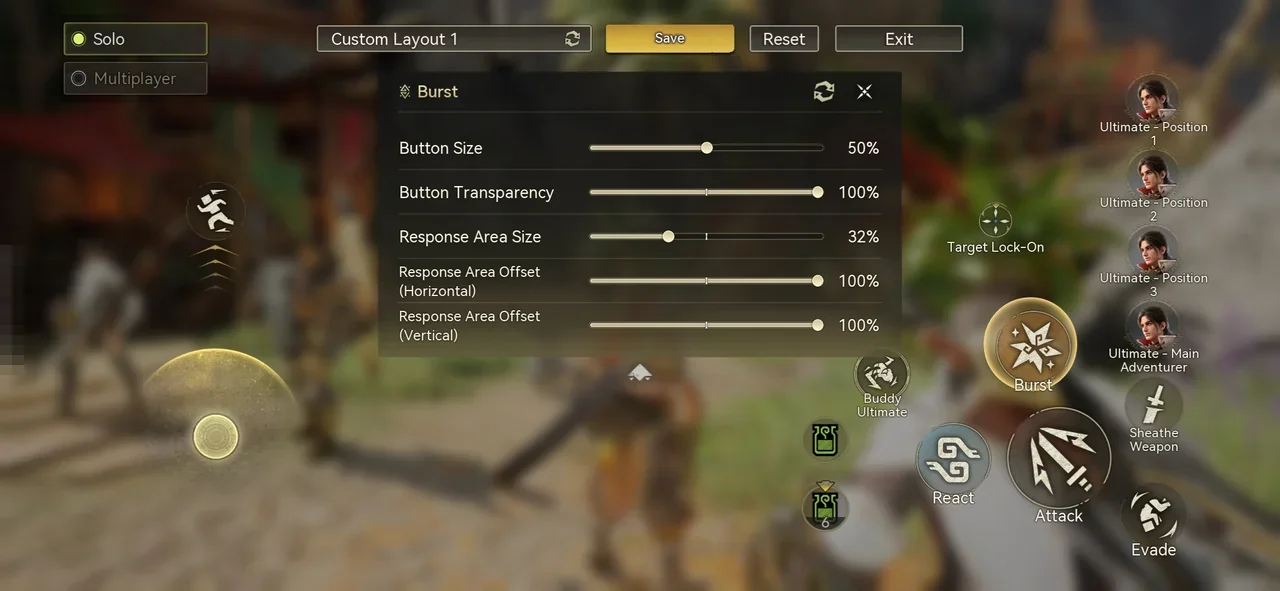
Each Basic (Hunt) mode has its own on-screen button layout. Tap Custom next to Custom Layout: Classic or Custom Layout: Adventure, then select a button to change its Button Size, Button Transparency, Response Area Size, and Response Area Offset (horizontal and vertical). Solo and Multiplayer each keep their own layout.
Best Graphics Settings
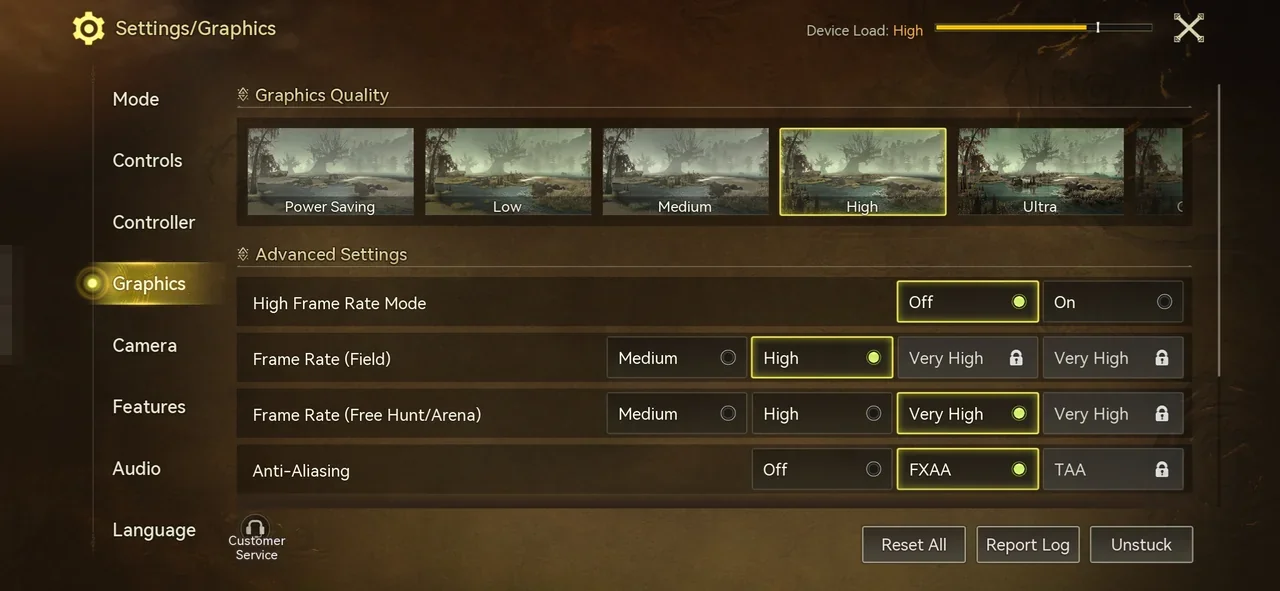
| Setting | Recommended |
|---|---|
| Graphics Quality | The highest available setting |
| High Frame Rate Mode | On |
| Frame Rate (Field) | The highest available setting |
| Frame Rate (Free Hunt/Arena) | The highest available setting |
| Anti-Aliasing | FXAA or TAA (turn it Off to reduce the load on your device) |
| Player Display Limit | 4 |
| Other Player's Visual Effects | None |
Some devices can't use every graphics option. Options your device doesn't support show a lock icon, and the Device Load gauge at the top of the screen shows how heavy your current settings are.
Prioritize frame rate. Set it as high as your device can handle first, then adjust the other options around it. Higher image quality looks better but also puts more load on your device.
If the game stutters or your phone overheats, lower the graphics settings one step at a time and check whether performance improves before you keep playing.
Recommended Camera Settings
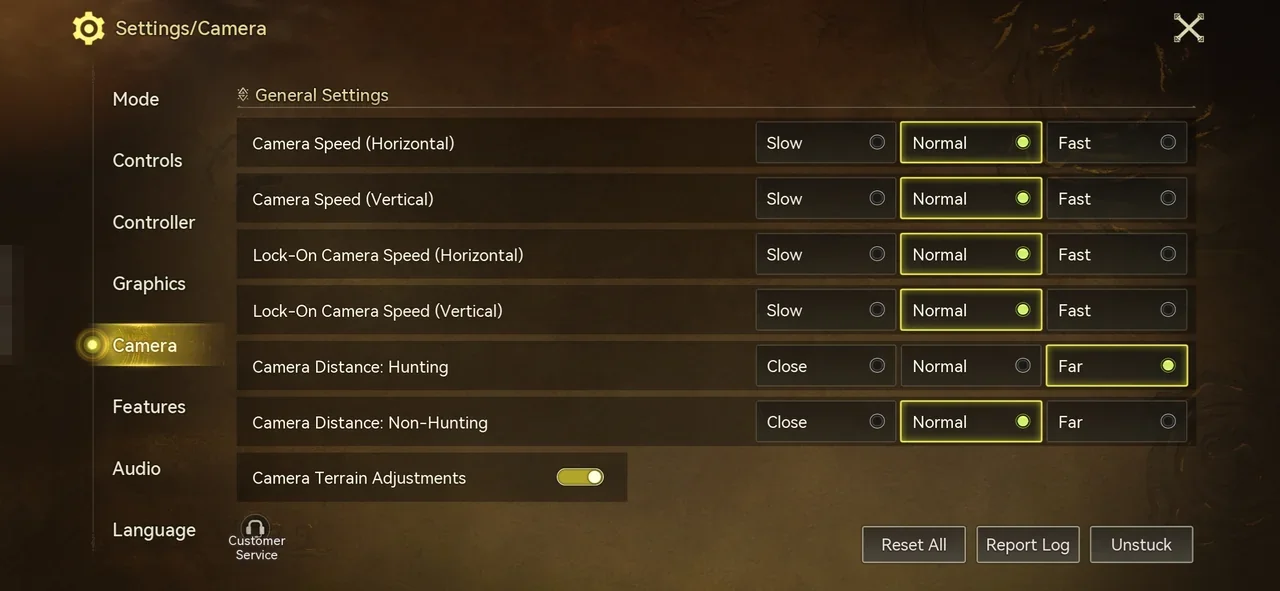
| Setting | Recommended |
|---|---|
| Camera Speed (Horizontal) | Normal |
| Camera Speed (Vertical) | Normal |
| Lock-On Camera Speed (Horizontal) | Normal |
| Lock-On Camera Speed (Vertical) | Normal |
| Camera Distance: Hunting | Far |
| Camera Distance: Non-Hunting | Normal |
| Camera Terrain Adjustments | On |
Apart from Camera Terrain Adjustments, the camera options come down to preference. Start from the defaults, try them in both combat and exploration, and fine-tune from there. If you're unsure, pick Normal.
Best Feature Settings
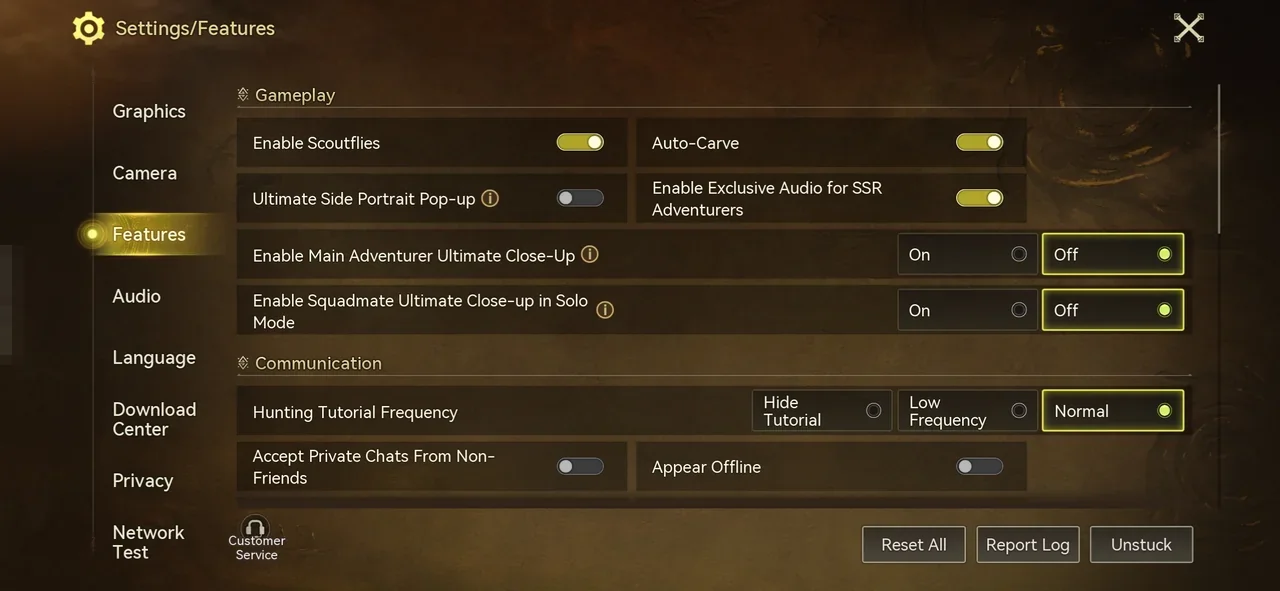
| Setting | Recommended |
|---|---|
| Enable Scoutflies | On |
| Auto-Carve | On |
| Ultimate Side Portrait Pop-up | Off |
| Enable Exclusive Audio for SSR Adventurers | On |
| Enable Main Adventurer Ultimate Close-Up | Off |
| Enable Squadmate Ultimate Close-up in Solo Mode | Off |
| Monster Attack Warnings | Enhancement |
| Show Monster Health | On |
| Monster HP Display Positions | Align Left |
| Show Skill Descriptions | On |
| Show Item Recommendation | On |
| Show Capture Recommendation | On |
| Monster Status Prompts | On |
| Default Tracking on Map Travel | On |
| Exit Map After Tracking Target | On |
| Hide Radar in Combat | Off |
| Hunting Tutorial Frequency | Your preference |
| Communication options (chat and friends) | Your preference |
| Damage Number Opacity | Your preference |
| Potion Recommendation Timing | Your preference |
| In-Match DPS Leaderboard | Your preference |
| Immersive Mode | Your preference |
| Skill Prompts | Your preference |
The communication options are Accept Private Chats From Non-Friends, Appear Offline, Ignore Squad Invitations from Non-Friends, Block Friend Requests, Hide from Squad Suggestions, and Chat Window Switch.
Check whether Enable Scoutflies is On. For the rest, turn on the options that help in combat, such as Show Monster Health.
Audio Settings
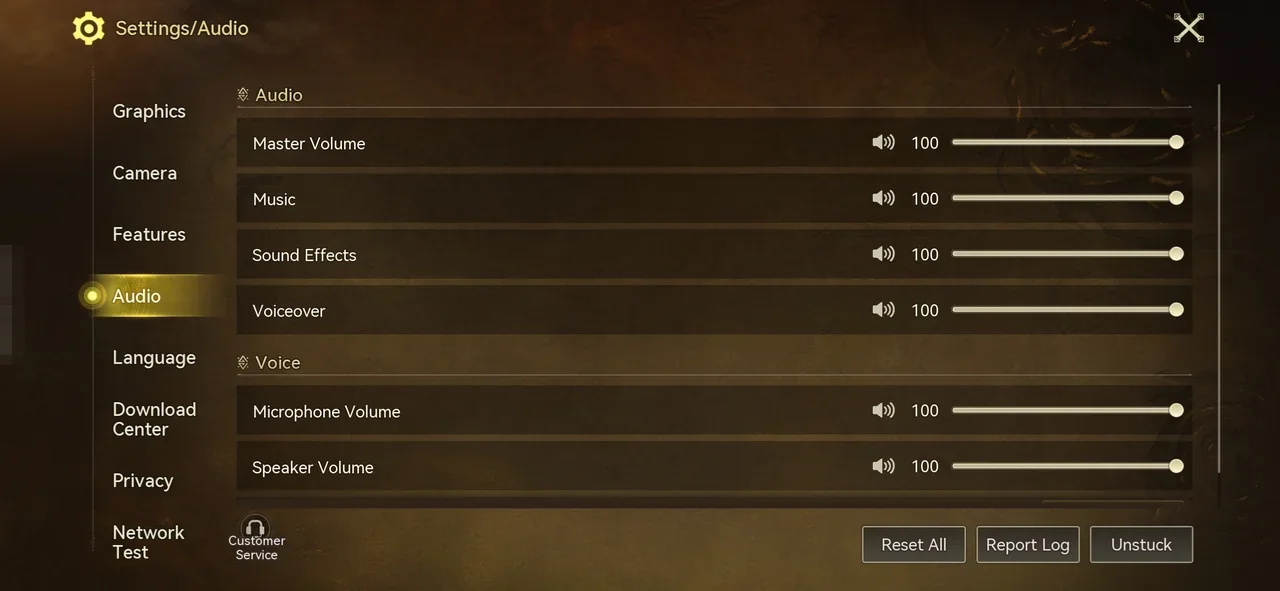
Set every audio option to your preference. The Audio tab has volume sliders for Master Volume, Music, Sound Effects, and Voiceover, plus Microphone Volume and Speaker Volume under Voice.
Choose the audio output that matches the device you are using: headphones, speakers, or your phone. With an external audio device, you can also adjust the volume on the device itself.
How to Change Settings
- Open the Settings screen
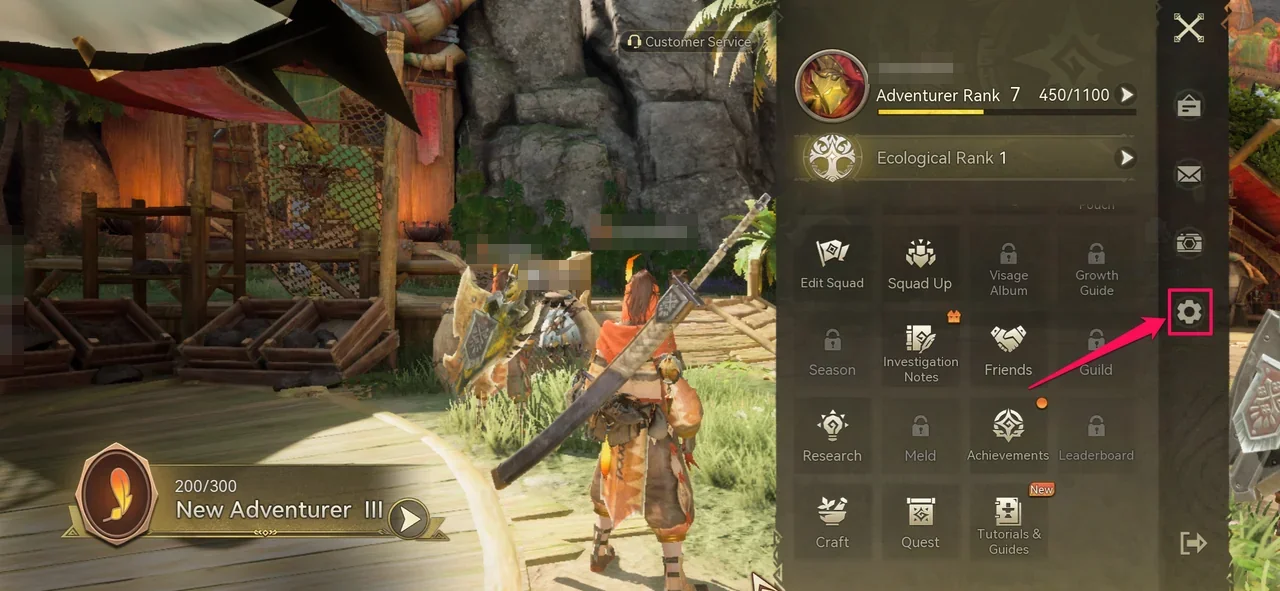
Open the menu, then tap the gear icon in the column on the right side of the menu. - Pick a tab
Choose a tab on the left: Mode, Controls, Controller, Graphics, Camera, Features, Audio, Language, Download Center, Privacy, or Network Test.
Review your settings before you continue with the story.