Yes, you can play with a controller. Plug it in with a USB-C cable or pair it over Bluetooth, and the game asks whether to switch to Controller Mode. The game notes that controllers only work in certain scenes in the current version.
Controller Support on Mobile
Yes. A controller connected with a USB-C cable or over Bluetooth works on your phone.
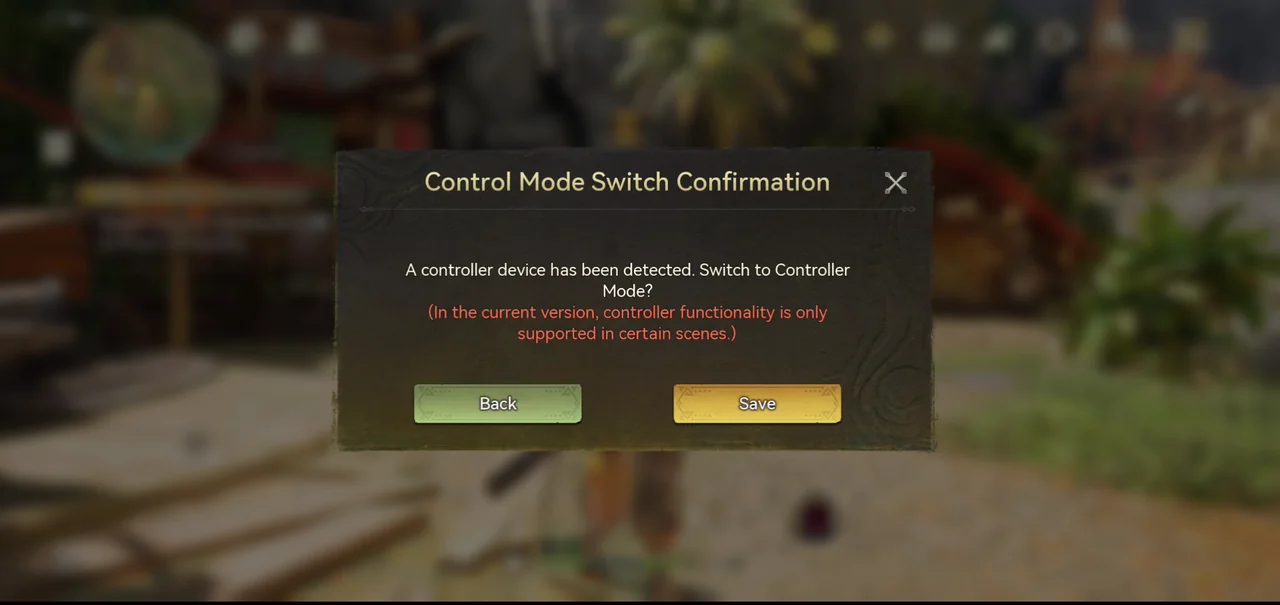
When the game detects a controller, the Control Mode Switch Confirmation window asks whether to switch to Controller Mode.
The same window says that in the current version, controller functionality is only supported in certain scenes.
In our play, the controller suited combat and exploration, while menus were easier to navigate with the touchscreen.
How to Connect a Controller to Your Phone
You can connect with a USB-C cable or over Bluetooth.
USB-C: plug in the controller
Plug the controller's USB-C cable into your phone's USB-C port, then start the game. The Control Mode Switch Confirmation window asks whether to switch to Controller Mode.
Bluetooth: turn on Bluetooth
Turn on Bluetooth on your phone.
Put the controller in pairing mode
On a PlayStation controller, hold the Share button and the PS button together, and release them when the light bar starts flashing.
Pair it in your phone's Bluetooth settings
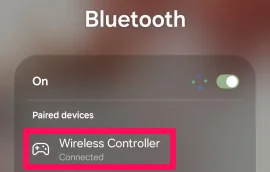
Open your phone's Bluetooth settings and select the controller. In our test, the PlayStation controller showed up as Wireless Controller.
Launch the game
Once the controller is paired, launch the game. The Control Mode Switch Confirmation window confirms the connection.
Where to Find the Controller Settings
Open the Menu, select Settings, then tap the Controller tab. The Settings/Controller screen has three tabs (Combat, Interact with Environment, and System) and a Reset All button.
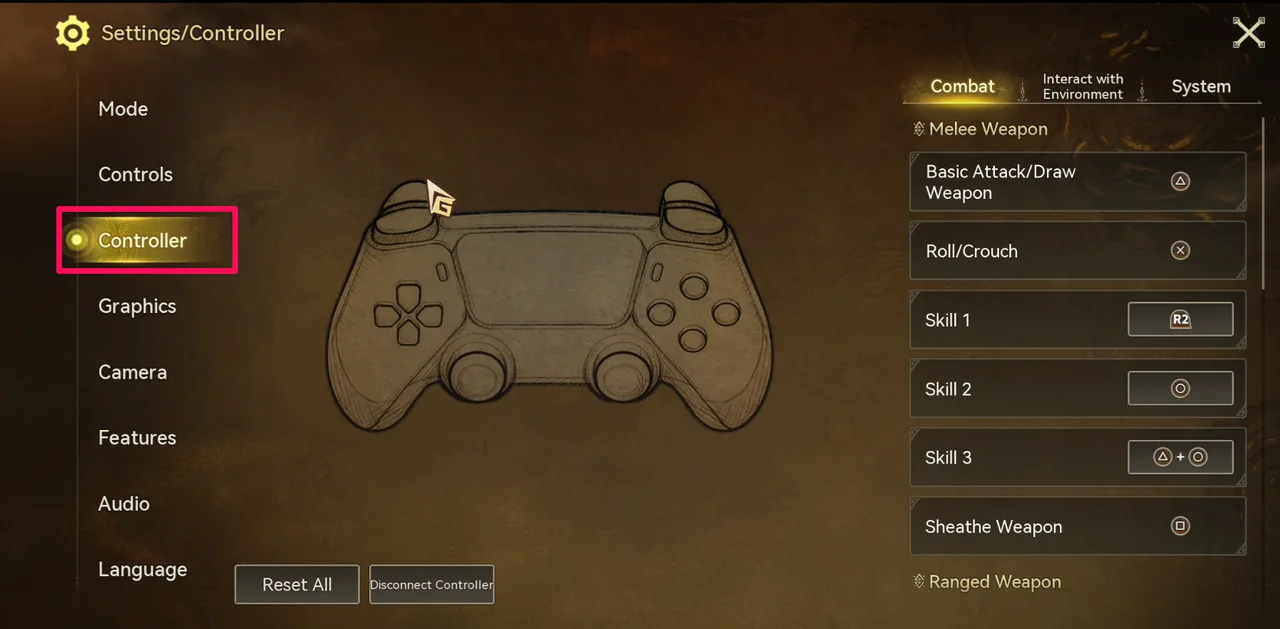
With no controller connected, the screen shows the Xbox button layout. A connected PlayStation controller switches it to PlayStation buttons.
PlayStation Controller Controls
Melee Weapon
Basic Attack/Draw Weapon: △. Roll/Crouch: ×. Skill 1: R2. Skill 2: ○. Skill 3: △ + ○. Sheathe Weapon: □.
Ranged Weapon
Basic Attack: R2. Skill 1: △. Skill 2: ○. Skill 3: △ + ○. Reload: hold L2 and press R1.
Ultimate Skill
Buddy Ultimate: L2 + R2. Ultimate I: hold L2 and press ×. Ultimate II: hold L2 and press □. Ultimate III: hold L2 and press ○. Ultimate IV: hold L2 and press △.
Lock-On Controls
Lock On/Unlock: R1. Use Lock-On Wheel: R1 + move R3. Switch Target: R1 + D-pad left or right.
Interact with Environment
Interact with Environment: ○. Switch Interaction Target: R3. Interact with Environment With Weapon Drawn: R1 + ○. Use Recommended Throwable: R1 + ×. Use Recommended Items: R1 + △. Use Default Items: □. Use Default Items With Weapon Drawn: R1 + □. Use the Quick Item Wheel: hold L1 and move R3. Open Build Mode: hold L2 and press D-pad up. Quick Build: ○.
System
Confirm/Cancel: × / ○. Open the menu: ☰ button. Open Map: touchpad. Open Quick Messages: D-pad down. Open Chat: hold D-pad down. Activate Selected Entry: hold D-pad up. Expand/Collapse Quest Bar: D-pad left. Open Quest interface: hold D-pad left. Change Servers: hold L1 and press the ☰ button. Leave Scene: hold L1 and press the touchpad.
Xbox Controller Controls
The Xbox layout below is what the Settings/Controller screen shows when no controller is connected.
Melee Weapon
Basic Attack/Draw Weapon: Y. Roll/Crouch: A. Skill 1: RT. Skill 2: B. Skill 3: Y + B. Sheathe Weapon: X.
Ranged Weapon
Basic Attack: RT. Skill 1: Y. Skill 2: B. Skill 3: Y + B. Reload: hold LT and press RB.
Ultimate Skill
Buddy Ultimate: LT + RT. Ultimate I: hold LT and press A. Ultimate II: hold LT and press X. Ultimate III: hold LT and press B. Ultimate IV: hold LT and press Y.
Lock-On Controls
Lock On/Unlock: RB. Use Lock-On Wheel: RB + move RS. Switch Target: RB + D-pad left or right.
Interact with Environment
Interact with Environment: B. Switch Interaction Target: RS. Interact with Environment With Weapon Drawn: RB + B. Use Recommended Throwable: RB + A. Use Recommended Items: RB + Y. Use Default Items: X. Use Default Items With Weapon Drawn: RB + X. Use the Quick Item Wheel: hold LB and move RS. Open Build Mode: hold LT and press D-pad up. Quick Build: B.
System
Confirm/Cancel: A / B. Open the menu: ☰ button. Open Map: View button. Open Quick Messages: D-pad down. Open Chat: hold D-pad down. Activate Selected Entry: hold D-pad up. Expand/Collapse Quest Bar: D-pad left. Open Quest interface: hold D-pad left. Change Servers: hold LB and press the ☰ button. Leave Scene: hold LB and press the View button.
How to Customize Controller Bindings
Open Settings > Controller
Go to Settings > Controller. Only the actions whose button sits inside a box can be changed.
Select a binding and pick a button
Select the binding, then choose a button from the list that appears. Only the buttons in that list can be assigned.
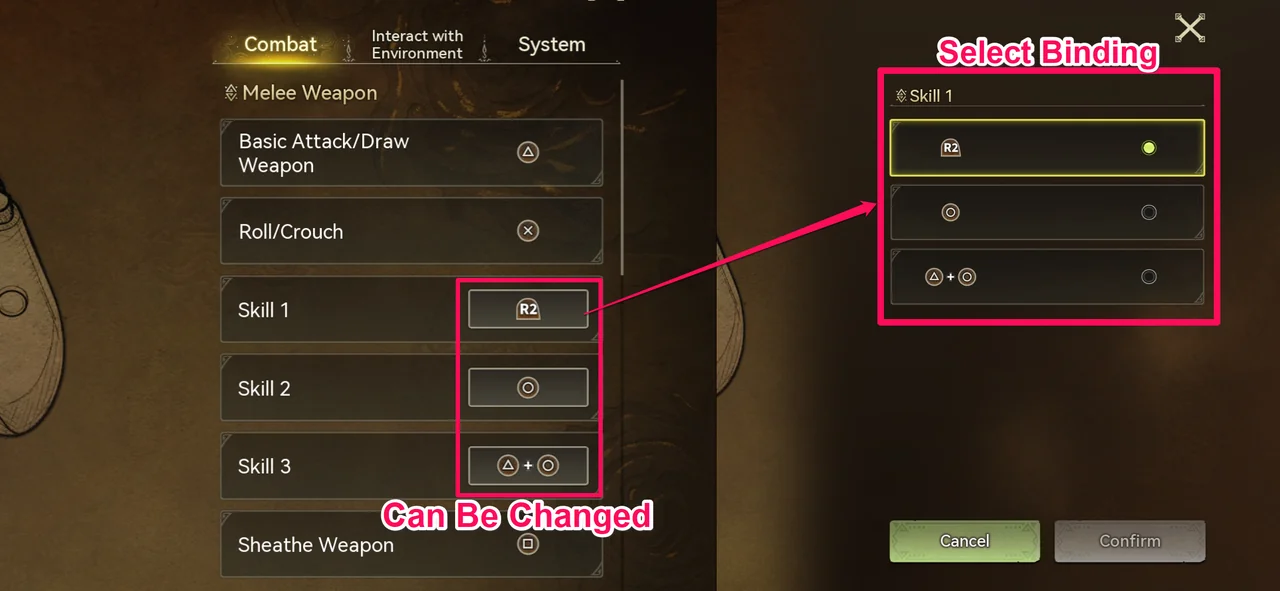
On a PlayStation controller, selecting the melee Skill 1 (R2 by default) offered three choices: R2, ○, and △ + ○.
The boxed actions are Skill 1 to 3 for melee and ranged weapons, Ultimate I to IV, and three of the R1 (RB on Xbox) combinations: Interact with Environment With Weapon Drawn, Use Recommended Throwable, and Use Recommended Items. Basic attacks, rolling, sheathing, reloading, Buddy Ultimate, lock-on, and the System controls have no box, so they cannot be changed.
This guide reflects the game as of October 29, 2026.