You can hide your head armor in Monster Hunter Outlanders from the layered armor (Appearance) screen, so your adventurer's face shows. Here is where the setting is, step by step, and what it changes. Info as of November 10, 2026.
How to Hide Your Helmet
| Step | What to do |
|---|---|
| 1 | Open the Menu at the Top Right |
| 2 | Tap Adventurer |
| 3 | Tap Appearance |
| 4 | Tap the Parts Button, Then Display |
1. Open the Menu at the Top Right
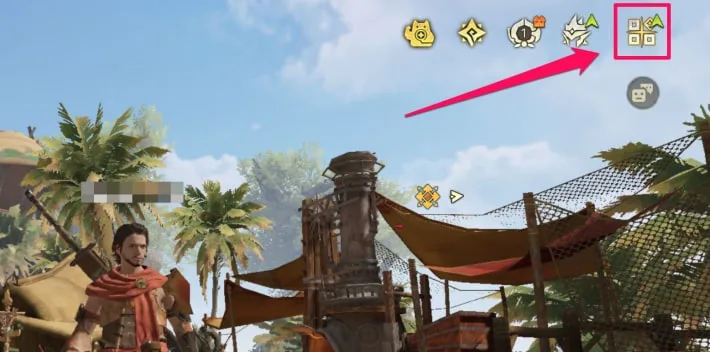
First, open the menu with the button at the top right of the main screen.
2. Tap Adventurer
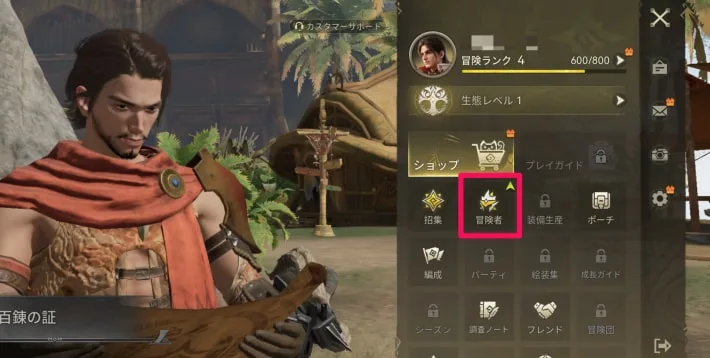
In the menu, tap Adventurer in the second row from the top.
3. Tap Appearance
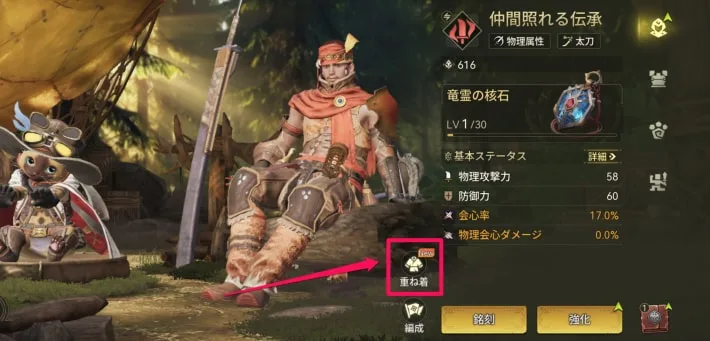
The Adventurer/Attribute screen opens with your adventurer's stats. Tap the Appearance button to the right of your adventurer, near the bottom of the screen.
4. Tap the Parts Button, Then Display
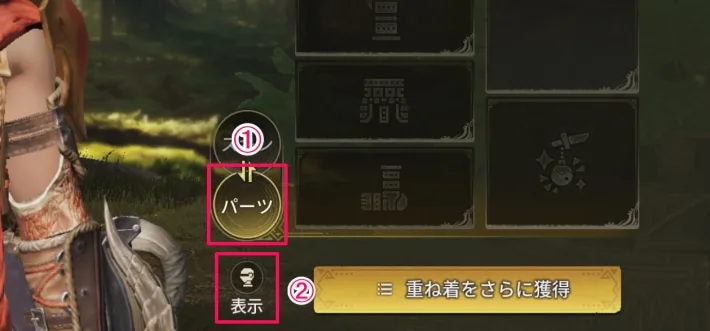
On the layered armor screen, tap the parts button at the bottom of the screen, just left of the yellow button. A Display button with a helmet icon appears below it; tap it to hide your head armor.
Only Adventurers in Your Squad Can Hide It
Adventurers who aren't in your squad can't hide their head armor. Add the adventurer to your squad first, then change the setting.
What Hiding Your Helmet Changes
Your Character's Face Shows
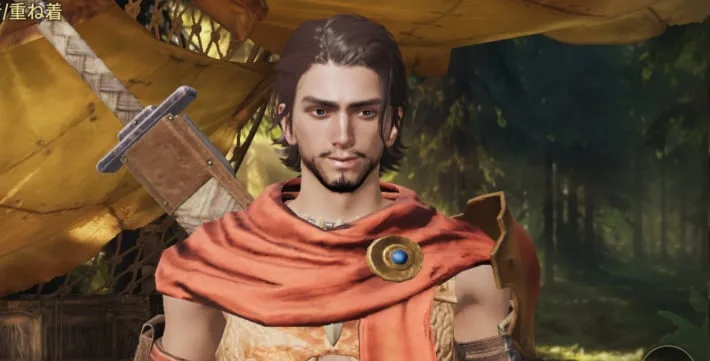
Hiding your head armor shows your character's face. If you don't want to cover the face you made in character creation, keep the helmet hidden while you play. It's part of the layered armor settings, so it only changes the look and keeps your gear's stats.
Works for Recruited Adventurers Too
You can also hide the head armor of adventurers you get from recruitment, so you can enjoy layered armor on your favorite characters without covering their faces.
The screenshots are from the Japanese version of the game.